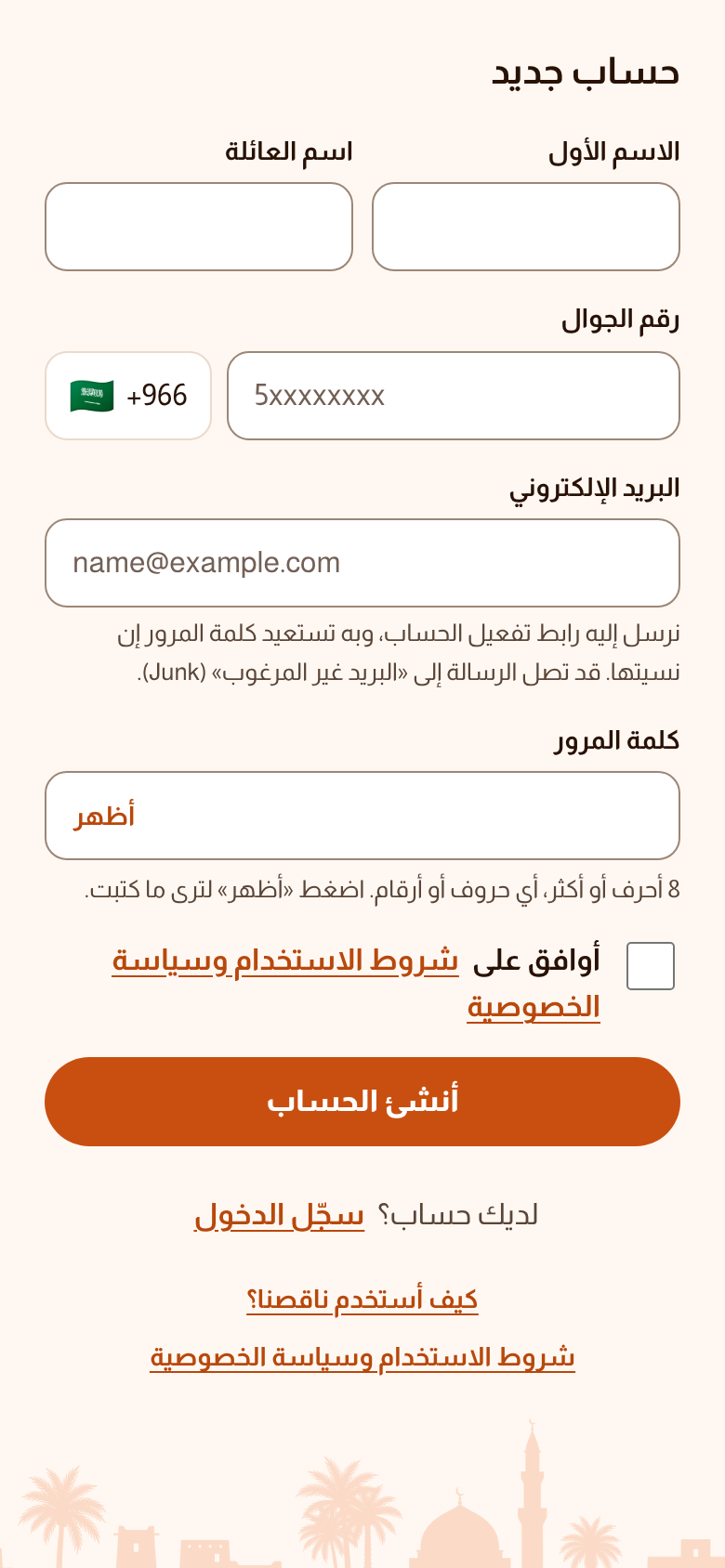
1 Create your account
- Open naqesna.com in your phone or computer browser.
- Tap "Create one" and enter your name, mobile number, email and a password.
- Open your email and tap the activation link we sent.
Password: at least 8 characters, any letters or numbers. Tap "Show" to see what you typed. If you can't find the email, check your junk folder.
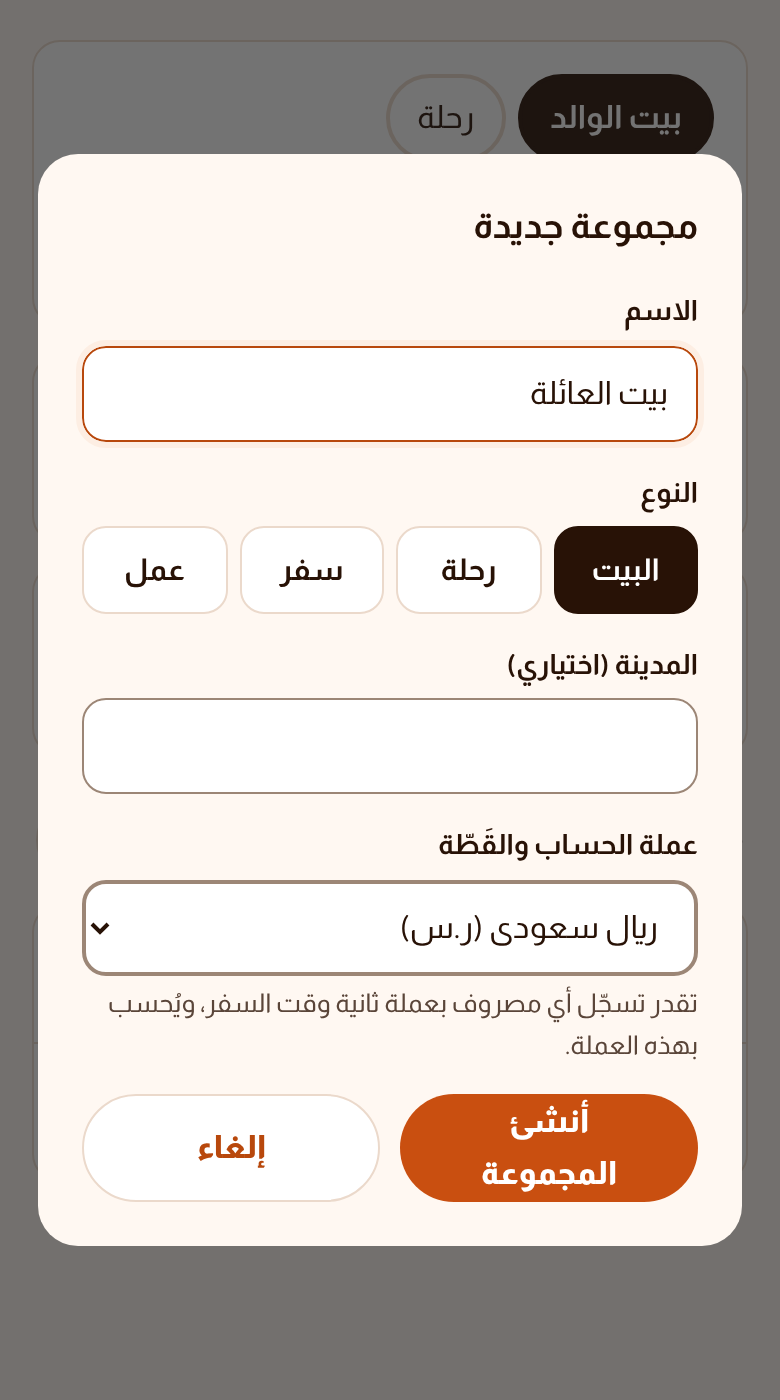
2 Create a group
- Tap "New group".
- Give it a name, such as "Family home" or "Jeddah trip", and choose its type.
- Tap "Create group".
A group is the people who share the list and the expenses with you. You can have more than one: one for home and another for a trip.
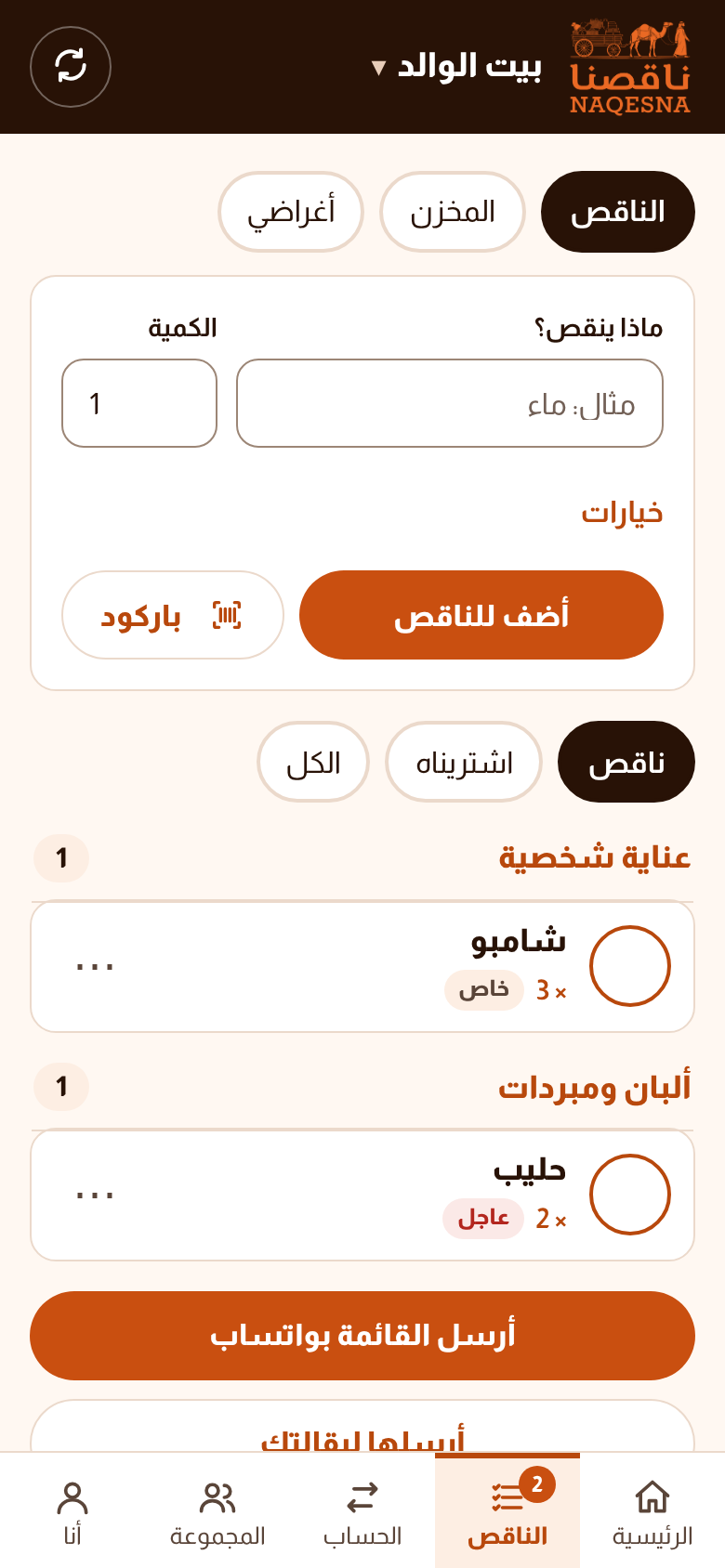
3 Write what is missing
- In "What is missing?", type the name and quantity, then tap "Add to list".
- Or tap "Barcode" and point the camera at the package until the phone vibrates.
- Unknown product? The camera opens so you can photograph its name on the package, and we write it for you.
Everyone in the group sees the same list as soon as you add to it. The number on the "To buy" button at the bottom of the screen is how many things are missing now.
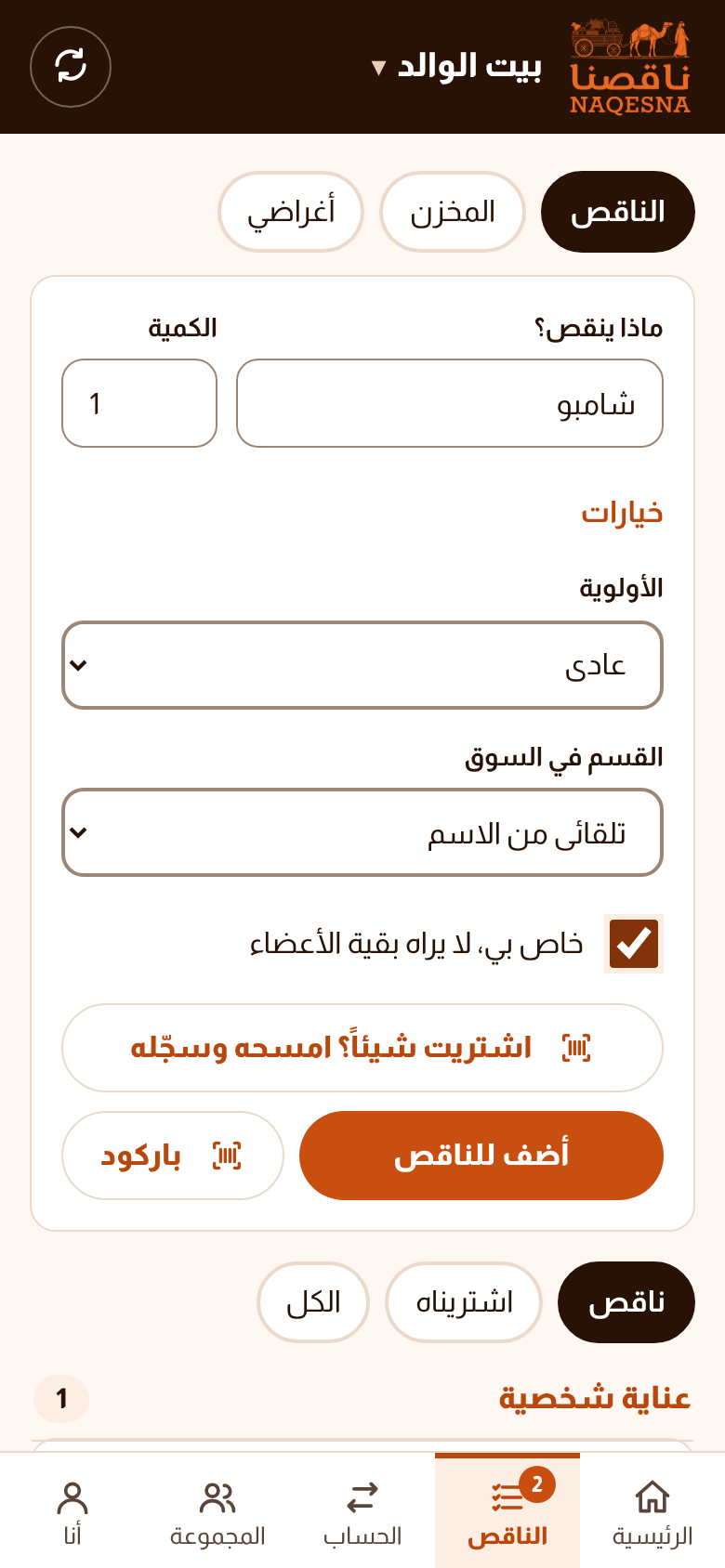
4 Your private needs
Not everything you need belongs to the group. For something that is just yours:
- Type the name and quantity as usual.
- Tap "Options" and tick "Private: other members cannot see it".
- Tap "Add to list".
It shows for you with the word "Private". No other member sees it, and it is not included in the list sent to the shop.
5 Invite members
Members are the people who share the group with you: your family, colleagues, or trip or flat mates.
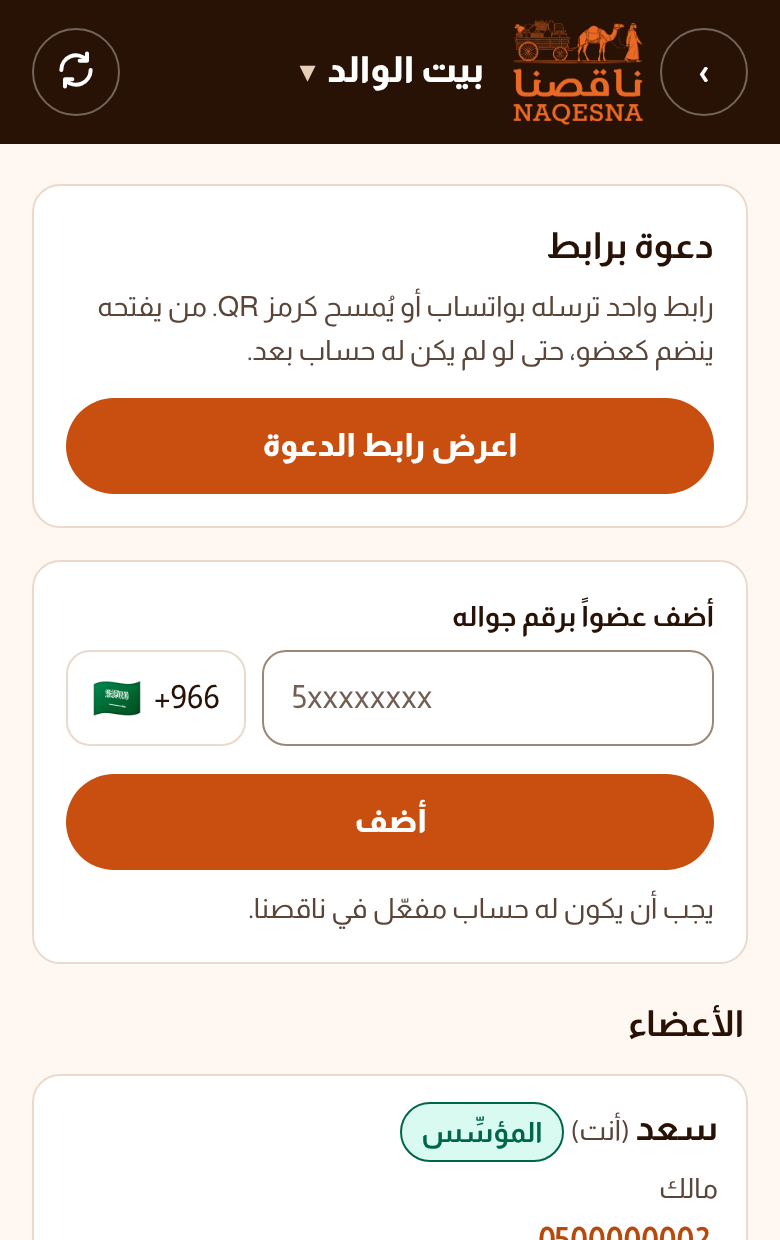
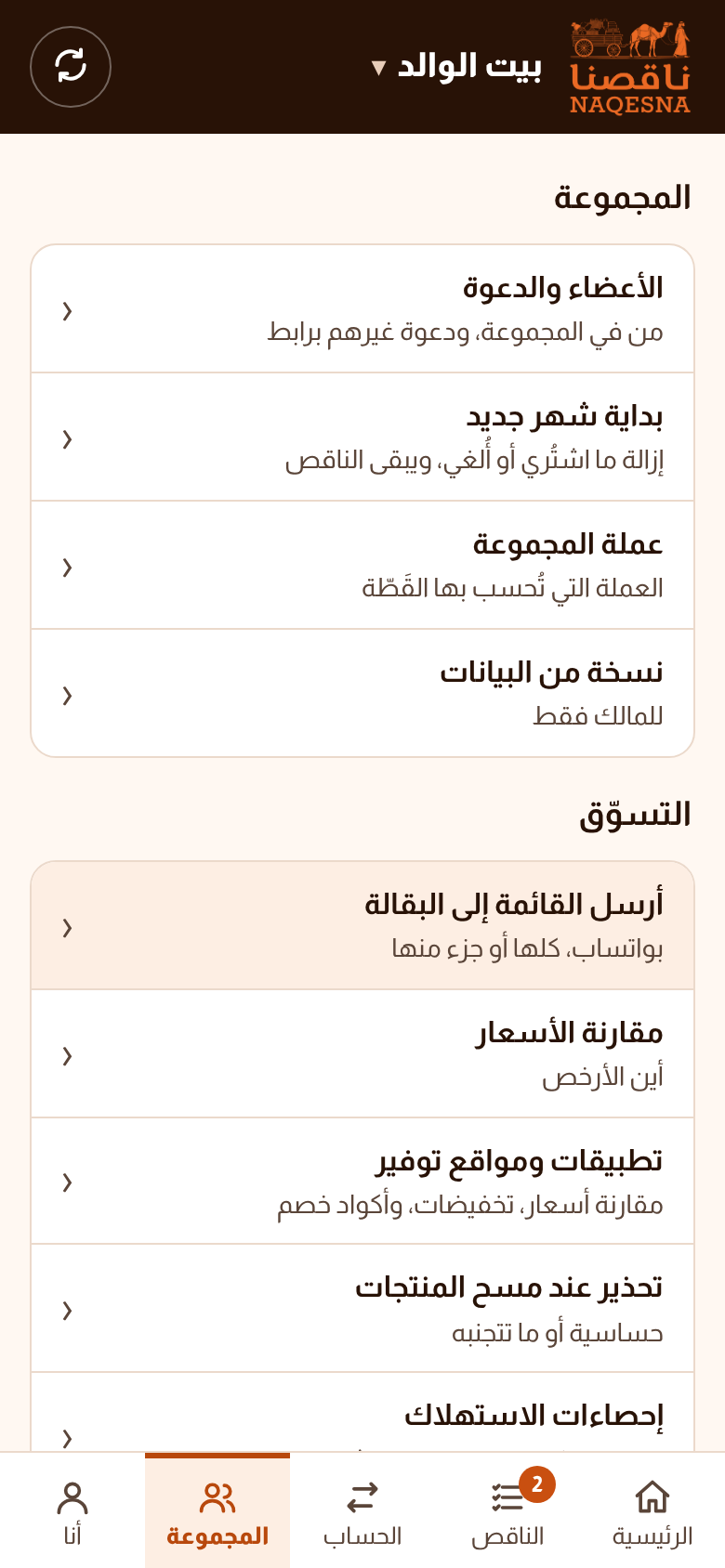
- Tap "The group" at the bottom, then "Members and invite".
- Tap "Show the invite link" and send it over WhatsApp, or let them scan the QR code.
Anyone who opens the link joins the group, even without an account: they create their account first, then go straight in.
6 When you buy
- Bought all of it: tap the circle next to it. It leaves the missing list for everyone.
- Bought part of it, or want to edit or cancel it: tap ⋯ next to it. There you can record part of it as bought, edit the name or quantity, or choose "Remove from the list".
- Made a mistake? Tap "Undo", which appears at the bottom of the screen.
7 Send the list to the shop
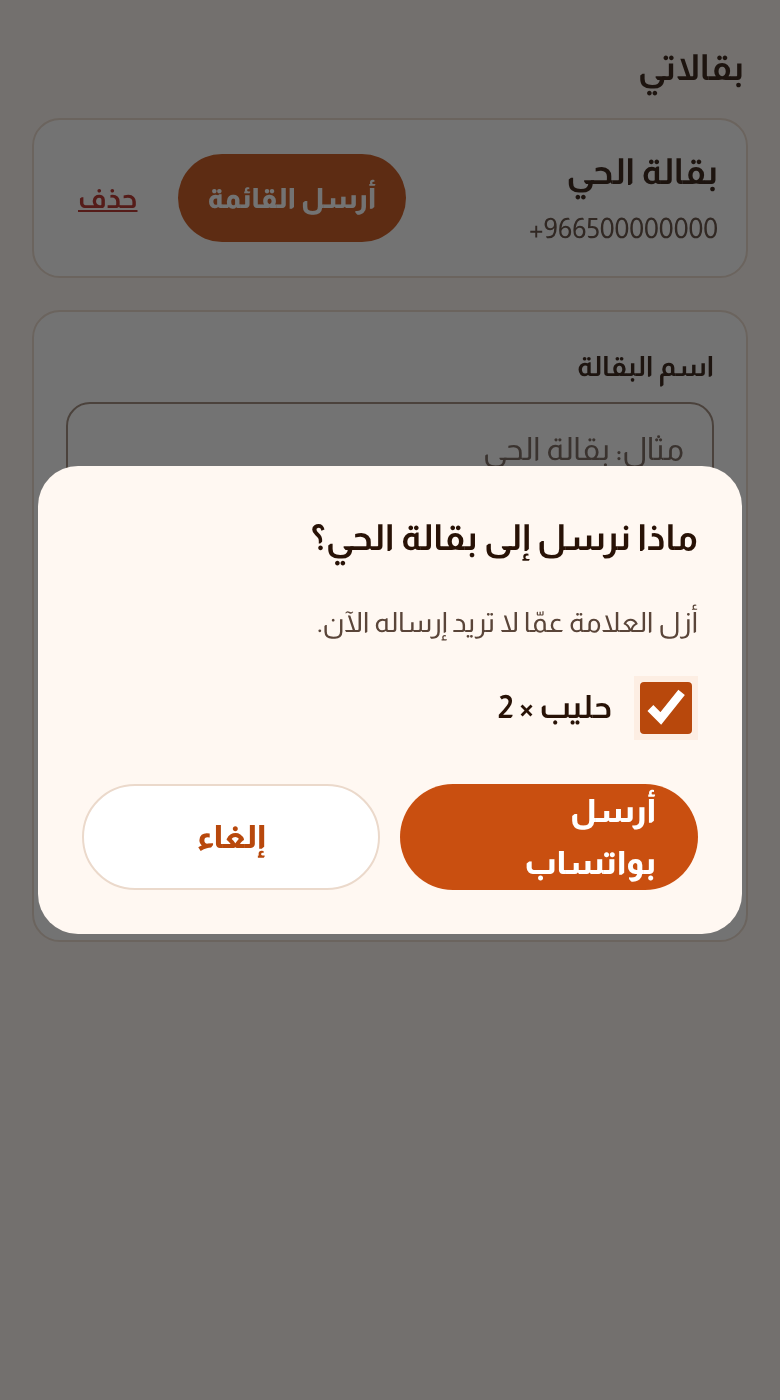
- At the end of the "To buy" list, tap "Send it to the shop".
- The first time only: enter the shop's name (grocery, gas, electrician, plumber…) and WhatsApp number and tap "Add my shop".
- Tap "Send the list" next to its name.
- Untick anything you don't want now, then tap "Send over WhatsApp".
WhatsApp opens with the list written and ready, so you just tap send. Only missing items are sent, and your private needs are never included. To send it to anyone, tap "Send the list on WhatsApp".
8 Who paid, and who pays whom
- All of this is under "Expenses" at the bottom.
- Expenses: record what you paid for the group: the amount and what you bought.
- Balances: Naqesna works out each person's share and tells you clearly who pays whom, and how much.
- Recorded an expense by mistake? Tap ⋯ next to it to edit or delete it, before it is split.
- Someone new joined, or the numbers changed? Use "Change the split" in "Balances".
- Travelling? Record the expense in the local currency and pick the exchange rate (we suggest today's); it counts in the split in the group's currency.
9 Useful extras
Under "The group" and "Me" at the bottom:
- Warnings when scanning products: choose what you avoid (allergies, cumin, pork…) and we alert you when you scan.
- Usage statistics: what you ask for most and how much you spent each month.
- Fingerprint sign-in: your fingerprint or face instead of a password.
- Price comparison: where it is cheapest.
- Under "Me": Text size, colours and language and Alert sound.
- Send feedback or an idea: we read every message.
And at the end of the "To buy" list: "Detailed view" shows the store aisles, and "Print the list".
10 Put it on your home screen
If you use Naqesna in the browser, put it on your home screen so it opens in one tap. Tap "Add Naqesna to your home screen" under "Me", or do it yourself:
- iPhone (Safari): the Share button, then "Add to Home Screen".
- Android (Chrome): the ⋮ menu, then "Add to Home screen".
Forgot your password? On the sign-in screen tap "Forgot your password?" and a link will be sent to your email.
Soon Shop needs
A new section we are working on, not available yet:
- A shop owner writes the stock their shop needs: the item, quantity and city.
- Suppliers and wholesalers see the requests and contact the owner on WhatsApp to agree on a price.
- With the same account: your home and trip groups, plus your shop's requests, each clearly marked as a business request.